


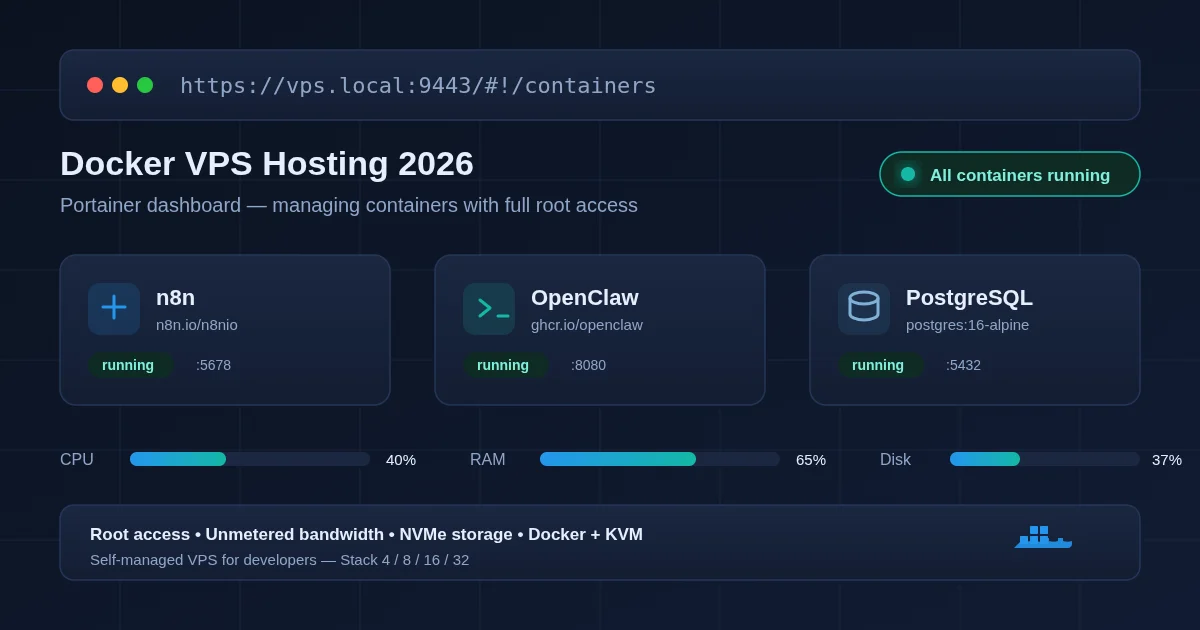
If you’re building apps, running client sites, or self-hosting tools like n8n or OpenClaw, at some point you’ll outgrow shared hosting. That’s where Docker VPS hosting comes in — a setup that gives you full root access, isolated resources, and a container runtime you control, without paying for a dedicated server you don’t need yet.
This guide walks through what Docker VPS hosting actually means, why it beats shared hosting for containerized workloads, and how to get Docker + Portainer running on a VPS in under 20 minutes.
What Is Docker VPS Hosting?
Docker VPS hosting is simply running Docker — the container engine — on a Virtual Private Server instead of a shared hosting plan or a fully dedicated machine. You get a slice of a physical server with your own OS, root access, and dedicated CPU/RAM, and on top of that you install Docker to run your applications as isolated containers.
Instead of one app per server, you can run:
- A web app in one container
- A database (Postgres, MySQL) in another
- A reverse proxy (Nginx, Traefik, Caddy) in a third
- Background workers, cron jobs, or automation tools (like n8n) in others
Each container is isolated, versioned, and disposable — you can tear one down and rebuild it without touching the rest of your stack.
Why Use a VPS for Docker?
You can run Docker locally or on your laptop, but that’s not hosting — it’s development. A VPS is what turns your containers into something the internet can actually reach, 24/7.
Full control. Shared hosting locks you into a control panel and pre-approved software list. A VPS gives you root access, so you can install Docker, Docker Compose, and anything else your stack needs.
Resource isolation. Your containers aren’t fighting other customers’ traffic spikes for CPU and RAM, the way they might on shared hosting.
Cost efficiency. A dedicated server is overkill for most self-hosted projects. A mid-tier VPS with 4–8GB RAM comfortably runs several containers for a fraction of the price.
Portability. Docker images run the same way in development and production, so what works on your machine works on the VPS.
Scalability path. Start on a small VPS, and when a project grows, resize the plan or move the same Compose file to a bigger box — no rewrite needed.
VPS Requirements for Docker
Not every VPS plan is Docker-ready out of the box. Before you commit, check for:
- At least 2GB RAM for a couple of lightweight containers; 4GB+ if you’re running a database alongside your app
- SSD/NVMe storage — container images and volumes benefit heavily from fast disk I/O
- A modern Linux distro (Ubuntu 22.04/24.04, Debian 12) with kernel support for cgroups v2
- Root/sudo access — non-negotiable for installing Docker
- Snapshot or backup support in case a container update goes sideways
- Predictable bandwidth if your containers serve public traffic
If a host preconfigures Docker and a management UI for you, that saves the setup step entirely — which is where DreamHost’s VPS library comes in.
Docker + Portainer: Why They’re Paired
Docker on its own is command-line only. That’s fine for a single container, but once you’re running five or six services, remembering docker compose up -d, checking logs with docker logs, and manually pruning old images gets tedious.
Portainer solves this by giving you a web dashboard on top of Docker. From it you can:
- Deploy and manage Compose stacks visually
- View live container logs without SSH
- Restart, stop, or rebuild containers with a click
- Monitor CPU/RAM usage per container
- Manage volumes, networks, and images
Pairing Docker with Portainer turns your VPS into something closer to a lightweight private cloud dashboard — useful whether you’re a solo developer or managing containers for client projects.
DreamHost Docker Hosting: What’s Preconfigured
DreamHost’s VPS plans include a one-click Docker + Portainer setup in their VPS app library, so you’re not manually installing either from scratch. That’s a meaningful time-saver if your goal is to get a Compose stack live quickly rather than spend an afternoon on server prep.
What this preconfiguration typically covers:
- Docker Engine installed and running on a clean Ubuntu image
- Portainer deployed and reachable via a dashboard login
- SSH access preserved for anything you need to do manually
- Resource tiers (RAM/CPU/storage) you can scale as your containers grow
This is a good fit if you want the control of a VPS without the setup overhead of bare-metal Docker installs.
Deployment: Getting Docker + Portainer Running
If you’re setting this up from a plain VPS (DreamHost’s preconfigured option skips most of this), the process looks like this:
- Spin up your VPS and update the OS:
apt update && apt upgrade -y - Install Docker using the official convenience script or your distro’s package manager
- Install Docker Compose (bundled with modern Docker installs as
docker compose) - Deploy Portainer as its own container:
   docker volume create portainer_data
   docker run -d -p 8000:8000 -p 9443:9443 --name portainer \
     --restart=always -v /var/run/docker.sock:/var/run/docker.sock \
     -v portainer_data:/data portainer/portainer-ce:latest
- Log into Portainer via the VPS’s IP on port 9443, set an admin password
- Deploy your first stack — either upload a
docker-compose.ymlor paste it directly into Portainer’s stack editor
From here, adding new services (a database, n8n, a static site container) is a matter of adding services to your Compose file and redeploying the stack.
Pricing: What Docker VPS Hosting Costs
VPS pricing varies by RAM, CPU cores, and storage, but as a general benchmark, entry-level VPS plans capable of running Docker comfortably start in the $10–15/month range for 2–4GB RAM, scaling up to $40–60/month for 8–16GB RAM configurations suited to multiple containers or a database-heavy stack.
DreamHost’s VPS lineup, for example, starts around $10/month with configurations ranging from 2GB to 12GB of RAM — enough to go from “a couple of small containers” to “a real multi-service stack” without switching providers. Exact current pricing and promotional rates are best confirmed directly on DreamHost’s site, since hosting pricing shifts with promotions.
Security Considerations for Docker VPS Hosting
Root access cuts both ways — more control, more responsibility. Keep these in mind:
- Firewall everything except what you serve. Only expose ports your containers actually need publicly (80/443 for web traffic); keep Portainer’s port restricted or behind a VPN/SSH tunnel.
- Keep Docker and images updated. Stale base images are one of the most common sources of container vulnerabilities.
- Use non-root users inside containers where possible.
- Enable automatic backups or snapshots at the VPS level, separate from container volumes.
- Restrict SSH access with key-based auth and disable password login.
- Set resource limits per container so one misbehaving service can’t starve the others.
Best Use Cases for Docker VPS Hosting
- Client web app hosting — isolate each client’s app in its own container/stack
- Self-hosted automation tools — n8n, Node-RED, and similar workflow engines
- Development/staging environments that mirror production
- Small SaaS products in early stages, before dedicated infrastructure is justified
- Personal or team tool hosting — analytics dashboards, internal APIs, monitoring stacks
- Database + app pairing — Postgres/MySQL alongside the app that uses it, on the same isolated VPS
Alternatives to Consider
- Managed container platforms (Render, Railway, Fly.io) — less control, but zero server management
- Kubernetes on a VPS — overkill for most self-hosters, but an option if you’re already running multiple nodes
- Bare-metal dedicated servers — worth it once your container footprint outgrows a single VPS’s resources
- Cloud provider container services (AWS ECS, GCP Cloud Run) — pay-as-you-go, but pricing and complexity scale up fast
For most self-hosted projects and small-to-mid client work, a Docker-ready VPS hits the sweet spot between cost and control.
Ready to run Docker and Portainer without the manual setup? Get a Docker + Portainer–ready VPS with DreamHost →
Continue exploring: DreamHost VPS Review · n8n Hosting Guide · OpenClaw Hosting Guide


Comments
Join the discussion
Sign in to leave a comment. It keeps the conversation civil and means you never have to type your name and email again.