


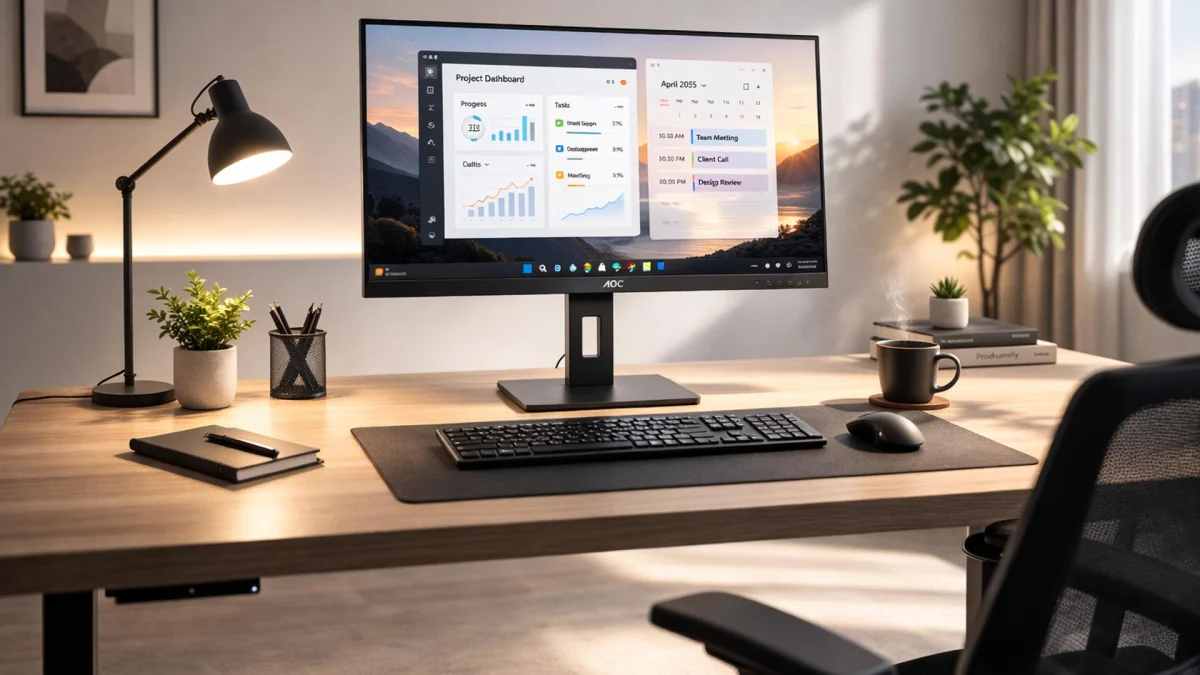
Choosing the right monitor can make a big difference when you work from home, write code, manage spreadsheets, edit photos, or study online. A good monitor gives you more screen space, clearer text, and a more comfortable workspace.
But with so many options available, how do you choose the best 27-inch monitor for your home office?
In this guide, we’ll explain what to look for, compare different types of monitors, and help you choose a display that fits your budget and workflow.
Looking for a monitor now? Browse monitors on Amazon to explore current options, prices, and customer reviews.
Quick Answer: What Is the Best Monitor for a Home Office?
For most people, a 27-inch IPS monitor with QHD (2560 × 1440) resolution is a practical starting point for productivity. If you regularly work with detailed graphics, high-resolution photos, or small text, consider a 4K monitor instead.
Your ideal choice depends on your budget, computer, desk size, and the work you do.
- Best for everyday office work: 27-inch QHD IPS monitor.
- Best for programming and multitasking: 27-inch QHD or 4K monitor.
- Best for graphic design: 27-inch 4K monitor with good color accuracy.
- Best for gaming and work: 27-inch QHD monitor with a 144Hz or higher refresh rate.
- Best for laptop users: A monitor with USB-C video input and suitable power delivery.
These are buying categories, not claims of independent product testing. Check current specifications and reviews before purchasing.
1. Why Choose a 27-Inch Monitor?
A 27-inch monitor offers a useful balance between screen space and desk requirements.
More room for multitasking
You can place two application windows side by side, compare documents, monitor a dashboard, or keep a code editor open alongside a browser.
For developers, designers, remote workers, and students, this can make everyday tasks more convenient.
A good balance of size and resolution
A 27-inch screen works well with QHD and 4K resolution. QHD provides more workspace than Full HD, while 4K offers finer detail when the computer and operating system are configured appropriately.
Flexible for different tasks
A suitable 27-inch display can handle office work, programming, online meetings, entertainment, and casual gaming. You don’t necessarily need separate monitors for every activity.
Explore 27-inch monitor options on Amazon
2. QHD vs. 4K: Which Resolution Should You Choose?
Resolution is one of the most important factors when buying a monitor.
| Feature | QHD (1440p) | 4K (2160p) |
|---|---|---|
| Resolution | 2560 × 1440 | 3840 × 2160 |
| Best for | Everyday work and multitasking | Detailed work and sharper text |
| Hardware demands | Generally moderate | Higher, especially for gaming |
| Typical consideration | Good balance of cost and clarity | Greater detail, potentially higher cost |
| Ideal buyer | Office users and programmers | Creators and detail-focused users |
When should you buy a QHD monitor?
Choose QHD if you want a useful upgrade from Full HD without paying extra for resolution you may not need. It is a strong option for web development, office applications, browsing, and general productivity.
When is a 4K monitor worth it?
Consider 4K if you work with high-resolution images, detailed designs, video editing, or small text. At 27 inches, 4K provides substantially higher pixel density than QHD.
Keep in mind that some users prefer display scaling to make text and interface elements comfortable to read.
Compare QHD and 4K monitors on Amazon
3. What Features Matter Most When Buying a Monitor?
Before choosing a particular model, compare the following features.
IPS panel
IPS displays are a popular choice for office work because they generally provide wide viewing angles and consistent colors. They’re useful when you spend hours reading documents, writing code, or working with visual content.
Refresh rate
A 60Hz monitor is sufficient for many productivity tasks. A 100Hz or 120Hz display can provide smoother scrolling and movement, while 144Hz or higher is particularly appealing for gaming.
Don’t pay extra for a high refresh rate unless you’ll benefit from it.
USB-C connectivity
If you use a compatible laptop, USB-C can simplify your desk setup. Depending on the monitor, a single cable may carry video, transfer data, and charge your laptop.
Check the supported USB-C video mode and power delivery wattage. Not every USB-C port supports every function.
Ergonomic stand
Look for height adjustment, tilt, and swivel. Pivot support can also be useful for reading long documents or viewing code.
A monitor arm is another option if the included stand doesn’t provide enough flexibility.
Eye-comfort features
Flicker-reduction technology, suitable brightness, and a matte screen can help make a display more comfortable in your workspace. No monitor can guarantee that you’ll avoid eye strain, so take regular breaks and adjust your lighting.
4. Which Monitor Is Best for Your Work?
Instead of choosing a monitor based on its price alone, match its features to your daily tasks.
For programmers and web developers
A 27-inch QHD IPS monitor is a practical option for PHP, Laravel, WordPress, JavaScript, and general development. You can keep your editor, browser, and documentation visible with less window switching.
Choose 4K if sharper text and additional workspace are important to you.
For remote workers
Prioritize comfortable text clarity, an adjustable stand, and connectivity. If you frequently join video meetings, consider whether you need a separate webcam or a monitor with an integrated camera.
For graphic designers and content creators
Color accuracy and color-space coverage matter more than refresh rate for many design workflows. Look for reliable specifications, calibration information, and connectivity that supports your computer.
A 4K display may be worthwhile for detailed design and image editing.
Browse monitors for graphic design
For gamers
Look for a suitable refresh rate, low input lag, and good motion handling. QHD at 144Hz or higher is a popular combination for 27-inch gaming displays.
Check that your graphics hardware can deliver the frame rates you want at the monitor’s native resolution.
Compare 27-inch gaming monitors
5. How Much Should You Spend on a Monitor?
The right budget depends on the features you need. Use these as general shopping tiers rather than fixed current market prices.
- Budget: Focus on a reliable IPS display, adequate resolution, and basic connectivity.
- Mid-range: Consider QHD or 4K resolution, a better stand, higher refresh rates, or USB-C.
- Premium: Look for advanced connectivity, professional color capabilities, high refresh rates, or OLED technology when those features suit your work.
Compare the total value rather than simply choosing the cheapest or most expensive option.
Check current monitor prices on Amazon
6. Common Mistakes to Avoid
Before buying, make sure you don’t overlook these details:
- Buying Full HD without comparing alternatives: At 27 inches, QHD may provide noticeably sharper text.
- Ignoring connectivity: Confirm that your computer supports the monitor’s required HDMI, DisplayPort, or USB-C connection.
- Paying for unnecessary features: A professional designer may need accurate colors, while a typical office user may not need a premium wide-gamut display.
- Forgetting ergonomics: An adjustable stand can make a meaningful difference to your desk setup.
- Ignoring the return policy: Check the seller, warranty, return conditions, and dead-pixel policy where applicable.
- Trusting outdated prices: Monitor prices and availability change. Check the latest listing before ordering.
7. How to Find the Right Monitor on Amazon
Amazon lets you compare different brands, screen sizes, resolutions, and features.
Use this simple process:
- Set your budget before browsing.
- Decide between QHD and 4K.
- Filter for your preferred screen size and panel type.
- Check the ports and stand adjustments.
- Read recent customer reviews, paying attention to recurring complaints.
- Compare the current price, warranty, seller, and return policy.
Ready to compare available models?
Shop computer monitors on Amazon
Frequently Asked Questions
Is a 27-inch monitor good for working from home?
Yes. It provides a useful amount of screen space for documents, spreadsheets, browser tabs, video calls, and multitasking. QHD is a good starting point for many users.
Is QHD or 4K better for a 27-inch monitor?
QHD is often a good balance of clarity and cost. 4K provides greater pixel density and is worth considering for detailed visual work and users who prioritize sharper text.
Is a 27-inch monitor suitable for programming?
Yes. It offers enough space for code editors, browser windows, and documentation. Both QHD and 4K can work well, depending on your preferences and budget.
Do I need USB-C on my monitor?
Not necessarily. HDMI and DisplayPort are sufficient for many desktop computers. USB-C is especially useful if you want to connect a compatible laptop with fewer cables.
Should I choose a 60Hz or 144Hz monitor?
For ordinary office work, 60Hz can be sufficient. Higher refresh rates provide smoother motion and may be more attractive for gaming or users who prefer smoother scrolling.
Where can I compare monitor prices and reviews?
You can browse computer monitors on Amazon to check current listings, specifications, customer feedback, and availability.
Final Verdict
The best 27-inch monitor is the one that fits your work, budget, and computer.
For most productivity-focused buyers, start by comparing QHD IPS monitors. Choose 4K if you need extra detail, and prioritize USB-C if it simplifies your laptop setup. Gamers should pay attention to refresh rate and motion performance, while designers should focus on color accuracy.
Take a few minutes to compare the specifications and current prices before making your decision.


Comments
Join the discussion
Sign in to leave a comment. It keeps the conversation civil and means you never have to type your name and email again.